Try lt Free
 Recovery success rate of up to

An SD card format prompt can feel like the end of your photos, but it does not always mean the files are gone. It often means the computer or camera cannot read the card’s file system. The photos may still be recoverable if you avoid writing new data to the card.
The most important rule is simple: do not format the SD card if the photos matter. Formatting can overwrite file-system information and reduce recovery chances.
Remove the card safely
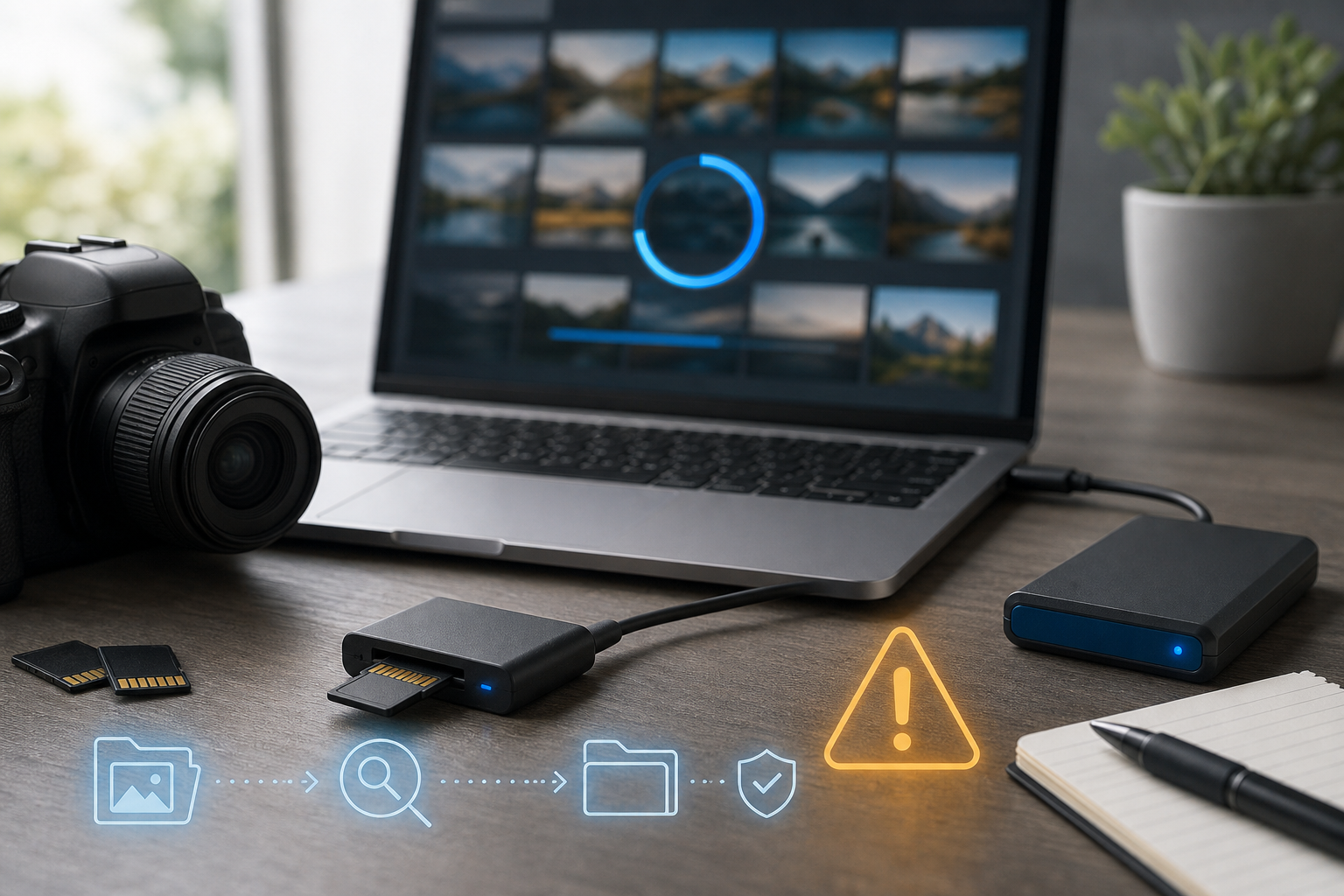
Stop using the camera or device immediately. Do not take new photos, record video, or try to save anything else to the card. Remove the card safely and keep it aside until you are ready to recover files.
If possible, use a reliable card reader instead of connecting the camera directly. A direct card reader connection often gives recovery software better access to the storage device.
Check whether the issue is the reader
Try another USB port, another card reader, and another computer. A weak reader or bad cable can cause a card to appear unreadable. If the card works elsewhere, copy the files immediately to a safe location.
If every device shows a format prompt, treat the card as a recovery case. Do not let the operating system initialize, repair, or format it.
Understand what the format prompt means
A format prompt usually means the system cannot mount the file system. It does not prove that the image files are physically erased. Recovery tools may scan the card for known photo and video file patterns, even when the folder structure is damaged.
Before you take action, it helps to read a recovery-focused guide from Drecov. The safest first steps are often about avoiding damage, not clicking the fastest fix.
Recover to another drive
If you use recovery software, never save recovered photos back to the same SD card. Choose a computer drive, external hard drive, or another storage device with enough free space. Saving to the same card can overwrite files that have not been recovered yet.
Users who need a recovery utility can use the Drecov download link. Install it on your computer, scan the SD card, preview files when available, and export recoverable photos to a different location.
When to stop DIY recovery
Stop if the card is physically cracked, bent, burned, or not detected by any reader. Physical damage may require a specialist. For important professional work, wedding photos, client shoots, or irreplaceable family images, avoid repeated experiments.
Prevent the next card failure
After recovery, replace unreliable cards. Format cards in the camera after files are backed up, avoid removing cards while writing, and keep at least two copies of important photos. SD cards are convenient, but they should not be the only place your memories live.
About us and this blog
Panda Assistant is built on the latest data recovery algorithms, ensuring that no file is too damaged, too lost, or too corrupted to be recovered.
Request a free quote
We believe that data recovery shouldn’t be a daunting task. That’s why we’ve designed Panda Assistant to be as easy to use as it is powerful. With a few clicks, you can initiate a scan, preview recoverable files, and restore your data all within a matter of minutes.