Try lt Free
 Recovery success rate of up to

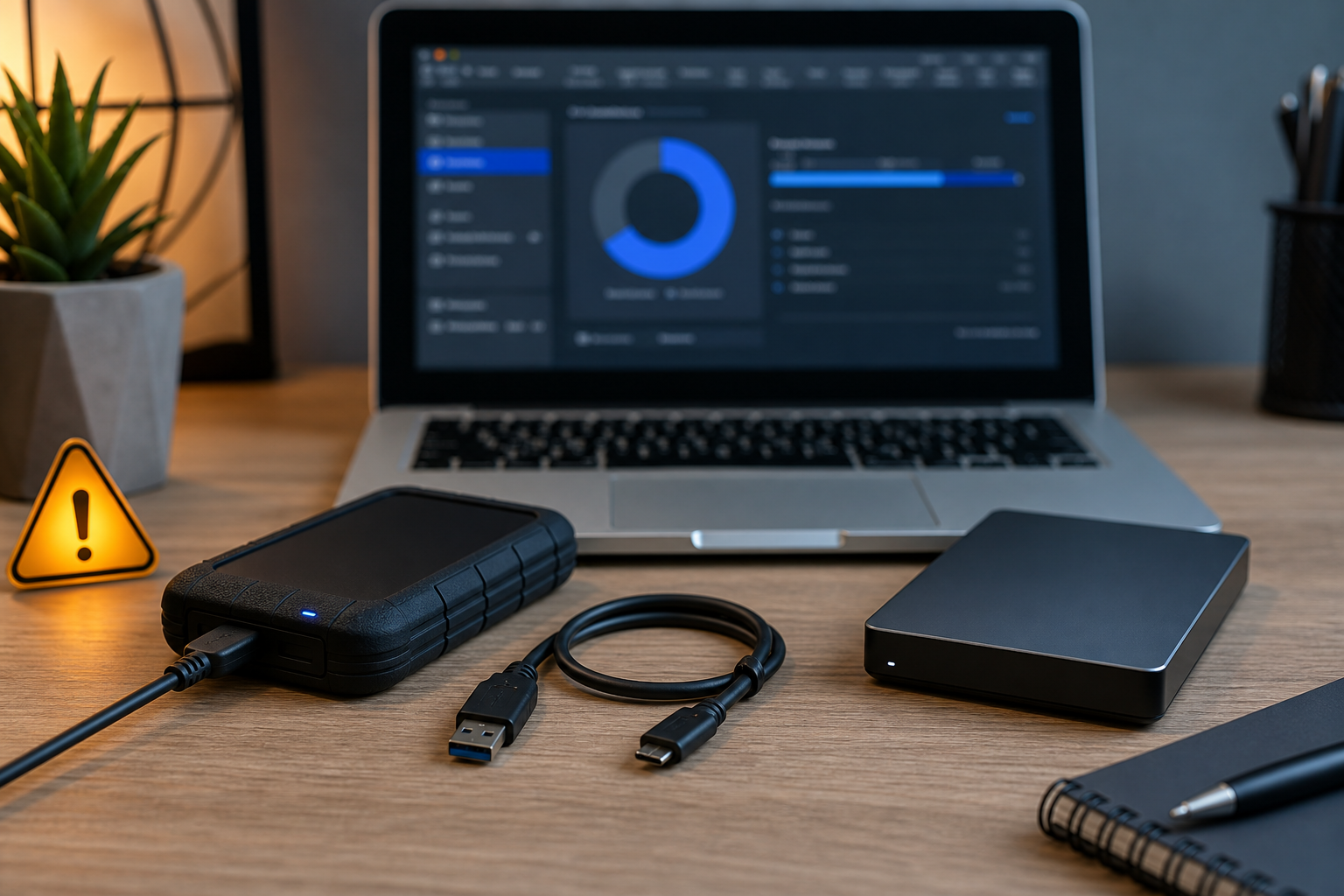
When an external hard drive does not show up, the first reaction is often panic. Windows may ask you to format the disk. macOS may fail to mount it. The drive light may blink, but no files appear. Before you click format or run repair commands, slow down. Some actions can make recovery harder.
The safest approach is to identify whether the problem is connection-related, file-system-related, or physical. Each situation requires a different response.
First, do not format the drive
A format prompt does not always mean the drive is empty. It often means the operating system cannot read the file system. The original data may still be present, but formatting writes new file-system information to the disk and can reduce recovery chances.
If the files matter, cancel the prompt. Do not initialize the disk, create a new partition, or run commands you do not fully understand. For a broader explanation of safe recovery scenarios, visit Drecov before attempting destructive fixes.
Check the simple connection issues
Try a different USB cable, port, and computer. Avoid USB hubs during testing. If the drive has a separate power adapter, confirm it is working. Some portable drives require more power than a weak port can provide, especially older USB ports or front-panel desktop connectors.
Listen carefully. A normal spinning sound is different from repeated clicking, grinding, or powering up and down. Strange mechanical noises can indicate physical damage. In that case, stop repeated attempts and consider professional help.
Look in Disk Management or Disk Utility
On Windows, open Disk Management and check whether the drive appears. On macOS, open Disk Utility. A drive that appears without a drive letter or mount point may have a partition or file-system issue. A drive that does not appear at all may have a cable, enclosure, power, or hardware problem.
If Windows shows the disk as RAW, unallocated, or not initialized, do not rush to fix it. Those labels describe what the operating system sees, not necessarily what happened to your data.
Avoid risky repair commands
Commands such as CHKDSK can be useful in some cases, but they are not always the first step for valuable data. A repair command may modify file-system structures. If the drive is failing physically or the file system is badly damaged, that modification can complicate recovery.
When data is important, recovery should come before repair. Copy or recover the files first, then decide whether the drive can be reused.
Use recovery software carefully
If the drive is detected and does not make unusual noises, recovery software may be able to scan it for lost files. The key rule is to recover files to a different storage device, never back to the same external drive. Saving recovered files to the problem drive can overwrite data that has not been recovered yet.
Users who need a recovery tool can start from the Drecov download page. Install the software on your computer, connect the affected drive, scan it, preview recoverable files when possible, and save results to another disk.
When to stop and seek professional help
Stop DIY attempts if the drive clicks repeatedly, is not detected by any computer, smells burnt, was dropped, or contains business-critical files with no backup. Software cannot fix mechanical damage. Continuing to power on a physically damaged drive may make the situation worse.
For less severe cases, a careful process can protect your chances: do not format, test cables and ports, check whether the disk is visible, avoid destructive repairs, and recover data before trying to reuse the drive.
About us and this blog
Panda Assistant is built on the latest data recovery algorithms, ensuring that no file is too damaged, too lost, or too corrupted to be recovered.
Request a free quote
We believe that data recovery shouldn’t be a daunting task. That’s why we’ve designed Panda Assistant to be as easy to use as it is powerful. With a few clicks, you can initiate a scan, preview recoverable files, and restore your data all within a matter of minutes.