Try lt Free
 Recovery success rate of up to

Finding free data recovery software for Windows can be confusing because almost every tool promises to recover deleted files, formatted drives, photos, videos, and documents. The reality is more nuanced. Some tools are free but difficult to use. Some are easy to use but limit how much data can be restored without upgrading. Some are excellent for simple deleted files but weak when a drive becomes RAW or corrupted.
The best choice depends on what happened to the data. A recently deleted file on a healthy internal drive is very different from a corrupted USB drive, a formatted SD card, or an external hard drive that Windows asks to format. Recovery success also depends on whether the lost data has been overwritten, whether the storage device is physically healthy, and whether SSD TRIM has already erased deleted blocks.
This guide compares practical Windows recovery options in 2026, with a focus on real-world use rather than marketing claims.
Best first choice for most users: PandaOffice Drecov
PandaOffice Drecov is a strong first option for Windows users because it is built around the recovery situations ordinary people actually face: deleted files, formatted partitions, inaccessible drives, RAW USB devices, memory cards, and external hard drives. Its workflow is simple enough for beginners while still covering deeper scan scenarios.
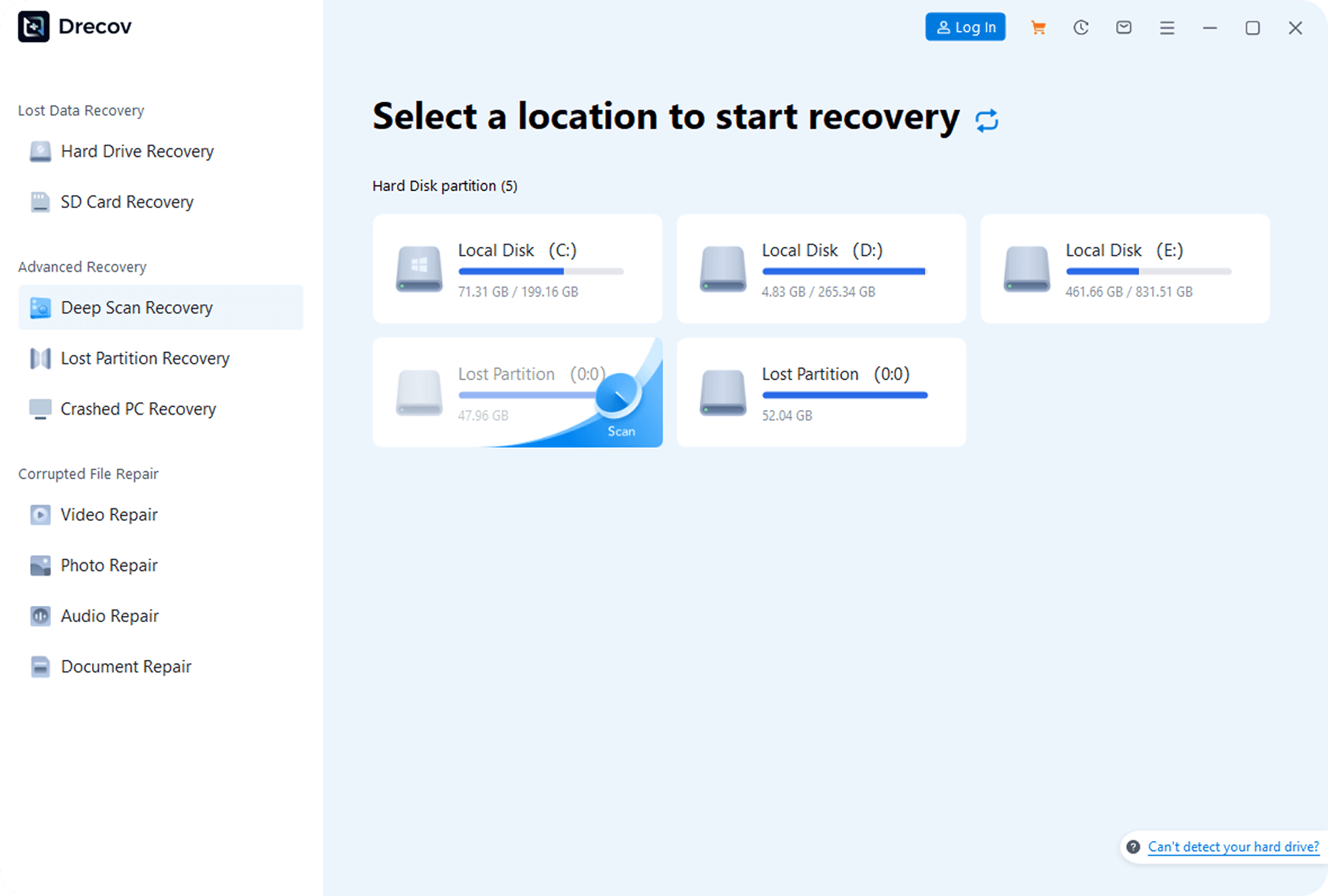
The main advantage is clarity. Instead of forcing users to choose technical scan modes immediately, PandaOffice Drecov presents storage locations and recovery options in a visual interface. Users can select the affected drive, scan it, preview recoverable files, and save them to another disk. This matters because panic is common after data loss. A recovery tool should reduce mistakes, not create new ones.
PandaOffice Drecov is especially useful when Windows can still detect the storage device but cannot open it normally. For example, if a USB drive asks to be formatted, an SD card shows missing photos, or an external hard drive appears with a damaged file system, the right move is usually to scan first and repair later. Formatting before recovery may reduce the chance of restoring original folder structures.
Reasons to choose PandaOffice Drecov:
Easy Windows interface for non-technical users.
Suitable for deleted files, formatted drives, RAW partitions, USB drives, SD cards, and external disks.
Preview-based recovery helps users check files before saving them.
Good fit for office documents, photos, videos, archives, and common file types.
Clear workflow: select location, scan, preview, recover to another drive.
Limitations:
No software can recover overwritten data.
Physically damaged drives should not be scanned repeatedly.
SSD deletion may be limited by TRIM.
Best for:
Most Windows users who want a practical recovery tool before trying command-line utilities or professional services.
Best official free tool: Windows File Recovery
Windows File Recovery is Microsoft?? command-line recovery tool. It is useful because it is official, free, and designed for Windows users. It can recover certain deleted files from local drives, USB devices, and memory cards.
The challenge is usability. Windows File Recovery requires commands, drive letters, destination paths, and scan modes. Users must also save recovered files to a different drive. A typical command may look simple to a technical user, but it can be intimidating for someone trying to recover family photos or work documents under pressure.
Windows File Recovery is most useful when the user knows what file type or folder path they want to recover. It is less comfortable for browsing a large preview list of recoverable files.
Reasons to choose it:
Free and official from Microsoft.
Good for technical users.
Useful for targeted recovery jobs.
Works without installing a third-party commercial product.
Limitations:
Command-line interface.
No friendly preview workflow.
Results may require manual sorting.
Best for:
Technical Windows users who want a free recovery option and are comfortable with Terminal or Command Prompt.
Best open-source option: PhotoRec and TestDisk
PhotoRec and TestDisk are respected open-source recovery tools. PhotoRec focuses on file carving, which means it searches storage media for recognizable file signatures instead of relying only on the file system. TestDisk is useful for lost partitions and certain boot or partition table problems.
These tools are powerful, but they are not the easiest option for beginners. PhotoRec often restores files without original names or folder structure. That can create thousands of recovered files that must be sorted manually. TestDisk can repair partition structures, but the wrong choice may make recovery more complicated.
Reasons to choose them:
Free and open source.
Strong technical reputation.
Can work when the file system is badly damaged.
Useful for photos, videos, and file signature recovery.
Limitations:
Interface is technical.
Original file names may be lost.
Sorting recovered files can take time.
Best for:
Advanced users, technicians, and cases where free file carving is more important than convenience.
Best simple undelete tool: Recuva
Recuva remains a well-known option for simple Windows undelete tasks. It is lightweight, familiar, and useful when a file was recently deleted from a healthy drive. It can also scan memory cards and external devices in some cases.
Recuva is not the strongest choice for complex corruption. If a drive appears as RAW, asks to be formatted, or has serious file system damage, deeper tools may be more appropriate. But for quick undelete jobs, it is still worth considering.
Reasons to choose it:
Simple interface.
Lightweight installation.
Good for recently deleted files.
Useful for basic consumer recovery.
Limitations:
Less suitable for RAW or severely corrupted drives.
May struggle with fragmented files.
Not ideal for advanced recovery cases.
Best for:
Simple deleted-file recovery on otherwise healthy Windows storage.
Best polished freemium option: Disk Drill
Disk Drill offers a modern interface, preview features, and additional tools such as byte-level backup and disk monitoring. It is often recommended by review publishers because it feels polished and supports multiple recovery scenarios.
The tradeoff is that the free version may be limited, and many users will need a paid upgrade for larger recoveries. Still, Disk Drill is a useful benchmark because it shows what a modern consumer recovery interface can look like.
Reasons to choose it:
Clean interface.
Good preview and scan workflow.
Useful extra utilities.
Available across major platforms.
Limitations:
Free recovery may be limited.
Some users may not need the extra features.
Best for:
Users who want a polished recovery suite and are open to upgrading if needed.
How to improve your recovery chances
No matter which software you choose, the first steps matter more than the brand name.
Stop using the affected drive immediately.
Do not install recovery software onto the same drive where files were lost.
Do not save recovered files back to the original device.
Avoid formatting before recovery.
If the drive is clicking, overheating, or disconnecting, stop and consider professional recovery.
For SSDs, understand that TRIM may make deleted data unrecoverable.
Final recommendation
For most Windows users, PandaOffice Drecov is the best place to start because it combines an accessible interface with support for common recovery scenarios such as deleted files, formatted drives, RAW USB devices, SD cards, and external hard drives. Windows File Recovery is a good official free option for technical users, while PhotoRec/TestDisk are powerful open-source tools. Recuva is useful for simple undelete jobs, and Disk Drill is a polished freemium alternative.
The most important rule is simple: recover first, repair later. If the data matters, avoid writing to the original drive until the files are safely restored.
About us and this blog
Panda Assistant is built on the latest data recovery algorithms, ensuring that no file is too damaged, too lost, or too corrupted to be recovered.
Request a free quote
We believe that data recovery shouldn’t be a daunting task. That’s why we’ve designed Panda Assistant to be as easy to use as it is powerful. With a few clicks, you can initiate a scan, preview recoverable files, and restore your data all within a matter of minutes.