Try lt Free
 Recovery success rate of up to

An external hard drive can become corrupted without much warning. One day it opens normally, and the next day Windows asks you to format it, File Explorer freezes, folders disappear, or the drive shows the wrong capacity. For anyone storing work files, photos, videos, backups, or client documents on an external drive, this can feel like a serious emergency.
The good news is that corruption does not always mean the files are gone. In many cases, the file system is damaged while the original data remains on the disk. The bad news is that careless repair attempts can make recovery harder. Before formatting, running repair commands, or copying new files to the drive, it is important to follow a safe recovery sequence.
This guide explains how to recover files from a corrupted external hard drive, what warning signs to watch for, and when recovery software such as PandaOffice Drecov is appropriate.
What does a corrupted external hard drive mean?
A corrupted external hard drive is a drive whose data structure can no longer be read normally by the operating system. The physical drive may still power on, spin, and appear in Disk Management, but Windows or macOS may not understand the file system correctly.
Corruption can affect different layers of the drive:
The partition table may be damaged, making the drive appear unallocated.
The file system may be unreadable, causing the drive to appear as RAW.
Folder records may be broken, making files disappear or show strange names.
Bad sectors may prevent certain files from opening.
USB connection issues may interrupt reading and writing.
The drive may have both logical and physical problems at the same time.
Logical corruption is often recoverable with software. Physical damage is more serious and may require a data recovery service.
Common symptoms of external hard drive corruption
A corrupted external hard drive may show several symptoms. Some are mild, while others indicate a higher risk of physical failure.
Windows asks you to format the drive before use.
The drive appears as RAW in Disk Management.
The drive letter appears, but clicking it causes File Explorer to freeze.
Folders open slowly or show empty contents.
File names become unreadable or turn into strange symbols.
Copying files stops with I/O device errors.
The drive disconnects and reconnects repeatedly.
The drive makes clicking, beeping, or grinding sounds.
The first group of symptoms often points to logical corruption. The last two symptoms may indicate hardware failure. If the drive makes unusual sounds, disconnects constantly, or is not detected reliably, stop using it and consider professional help.
First rule: do not format the drive
When Windows says the drive needs to be formatted, it is tempting to click Format just to make the drive open again. Do not do this if the files matter.
Formatting may create a new file system and overwrite information that recovery software could use. A quick format does not always erase every file immediately, but it can still reduce the chance of restoring original file names and folder structure. A full format is even riskier because it writes across the drive.
The safer approach is to recover files first, verify that they open correctly, and only then format or repair the corrupted external drive.
Step 1: Check the connection
Before assuming the drive itself is corrupted, rule out simple connection problems.
Try a different USB cable. Many external drive issues are caused by weak or damaged cables.
Use a different USB port. On desktop computers, rear motherboard ports are often more stable than front-panel ports.
Avoid USB hubs. Connect the drive directly to the computer during recovery.
Try another computer. If the drive works normally elsewhere, the issue may be with the first computer.
For desktop-class external hard drives, make sure the power adapter is stable. A weak power supply can cause disconnections, slow access, and file system errors.
If the drive becomes stable after changing the cable or port, copy the most important files immediately to another location. Do not assume the problem is permanently fixed.
Step 2: Stop writing to the drive
Once corruption is suspected, do not save anything new to the external hard drive. Do not create folders, move files around, install software onto it, or use it as a recovery destination.
Every write operation can overwrite recoverable data. Even if the drive appears empty, the original files may still exist in unallocated space. Recovery software depends on those remaining data blocks and file records.
Prepare another storage device with enough space for recovered files. This can be an internal drive, a second external drive, or a large USB drive. The destination must be different from the corrupted drive.
Step 3: Scan the drive with PandaOffice Drecov
For most logical corruption cases, PandaOffice Drecov is a strong first recovery option. It is designed for users who need to recover files from storage devices such as external hard drives, USB drives, memory cards, and formatted or inaccessible partitions.
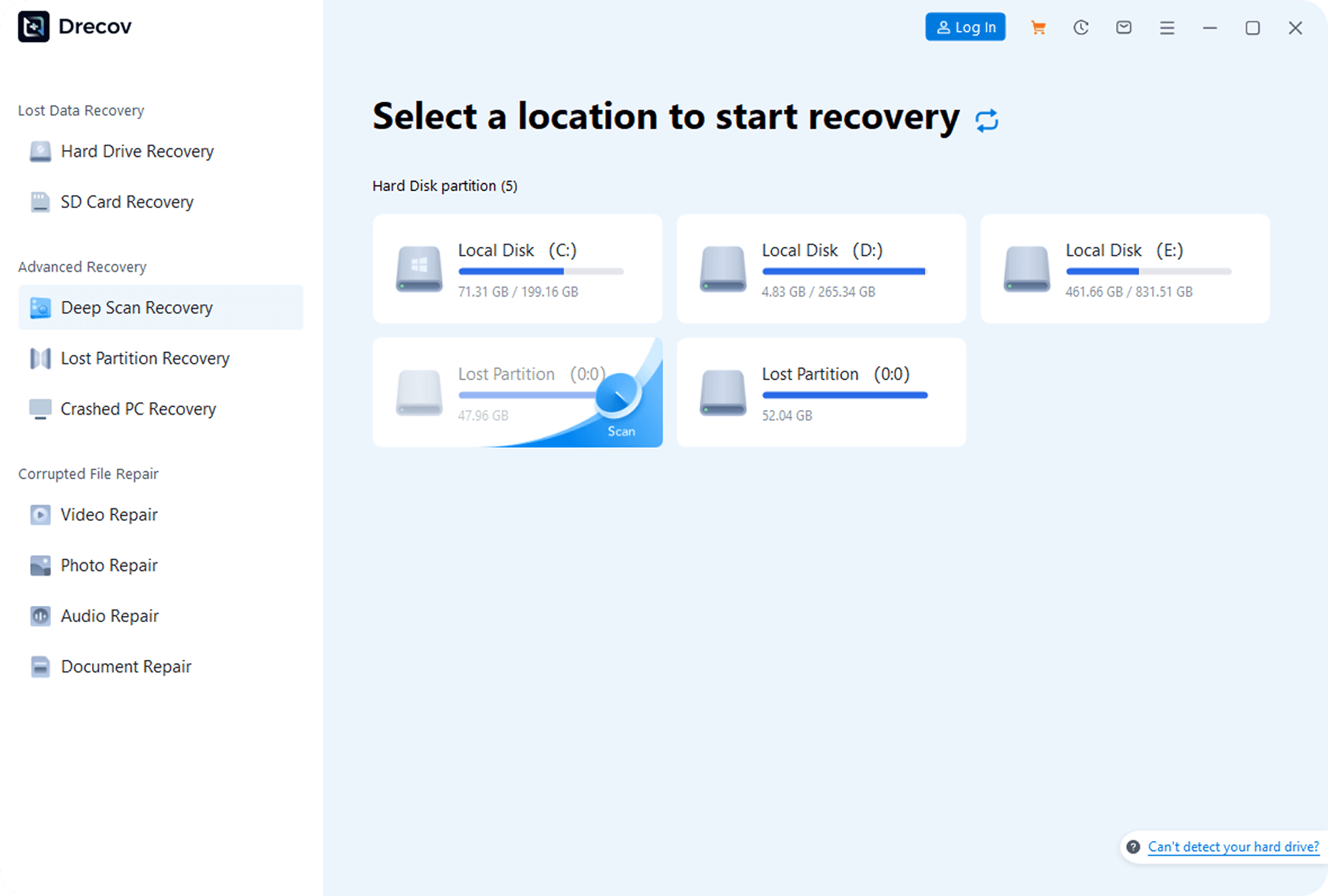
The basic recovery process is:
Connect the corrupted external hard drive to a stable computer.
Open PandaOffice Drecov.
Select the affected external drive from the device list.
Start a scan. If a quick scan is not enough, use a deeper scan.
Preview recoverable files when available.
Select the files you need.
Recover them to another drive, not the corrupted external hard drive.
After recovery, open the restored files to confirm they work. Documents should open normally, photos should display correctly, and videos should play without major errors.
PandaOffice Drecov is especially useful when the drive is visible but inaccessible. This includes cases where Windows asks for formatting, the drive appears as RAW, folders disappear, or accidental formatting has occurred.
Step 4: Recover the most important files first
If the external drive is unstable, prioritize the most valuable data. Do not spend hours trying to recover every temporary file or duplicate folder before securing essential documents, photos, videos, or business files.
Start with:
Work documents.
Client files.
Financial records.
Photos and videos that do not exist elsewhere.
Project folders.
Archives and backups that cannot be recreated.
Once the critical files are safe, you can run broader scans for less important data.
Step 5: Create a disk image if the drive is unstable
If the drive disconnects during scanning, becomes very slow, or shows repeated read errors, a disk image may be safer. A disk image is a sector-by-sector copy of the drive saved as a file on another healthy disk. Recovery software can then scan the image instead of repeatedly stressing the failing drive.
This is a common approach in more advanced recovery workflows. It reduces the number of times the original drive must be read. If the external drive is failing physically, every scan can make the condition worse.
However, imaging a damaged drive can take a long time and requires another storage device with enough free space. If the drive cannot remain connected long enough to image, professional recovery may be the better option.
Step 6: Use CHKDSK only after recovery
CHKDSK can sometimes repair file system errors, but it should not be the first step when files are important. Repair tools modify the file system. In some cases, they can move damaged file records, delete corrupted entries, or convert fragments into found files.
After you have recovered the important data, you can try:
chkdsk E: /f
Replace E: with the correct drive letter. Be careful. Running CHKDSK on the wrong drive can cause unnecessary changes.
If the drive is RAW, CHKDSK may refuse to run. If it does run, inspect the results carefully. A repaired drive should still be treated with caution until you have tested it.
Step 7: Format the drive only after files are safe
Formatting can make a corrupted external drive usable again if the problem is logical. After recovering your files, you can format the drive in Disk Management or File Explorer.
For Windows-only use, NTFS is usually a good choice. For use across Windows and macOS, exFAT is often more convenient. For older devices, FAT32 may be required, but it has a 4 GB file size limit.
If formatting fails, the drive may have hardware problems. If it formats successfully but errors return soon afterward, replace it. A drive that has already shown corruption should not be trusted as the only copy of important data.
When software recovery is not enough
Recovery software is useful for logical data loss. It is not a cure for every drive problem.
Consider professional recovery if:
The drive makes clicking, grinding, or beeping noises.
The drive does not spin up.
The computer freezes whenever the drive is connected.
The drive disconnects every few seconds.
The data is extremely valuable and there is no backup.
The drive was dropped, exposed to water, or physically damaged.
The drive is part of a RAID or encrypted storage setup.
Professional labs may use cleanroom tools, hardware repair, and specialized imaging equipment. They are more expensive than software, but they are often the safer choice for physically damaged drives.
How to prevent external drive corruption
External hard drives are convenient, but they should not be treated as permanent archives without backup.
Always eject the drive safely before unplugging it.
Avoid moving the drive while it is spinning.
Use a stable USB cable and avoid loose ports.
Keep the drive away from heat, moisture, and vibration.
Do not use the same drive as both working storage and backup.
Keep at least one additional backup in another location.
Check drive health periodically.
Replace older drives before they become unreliable.
The best recovery strategy is prevention. A simple second backup can turn a disaster into a minor inconvenience.
FAQ
Can I recover files after formatting a corrupted external drive?
Yes, sometimes. A quick format may leave much of the original data intact, but recovery chances drop if new files are written to the drive afterward. Scan the drive with recovery software as soon as possible.
Can I recover files from a RAW external hard drive?
Yes, if the drive is still physically readable. RAW usually means the file system is unreadable, not that the data is automatically gone. Use PandaOffice Drecov or another recovery tool before formatting.
Should I run CHKDSK before recovery?
Not if the files are important. Recover the files first, then repair the drive. CHKDSK modifies the file system and may reduce recovery options in some cases.
Why is my external hard drive suddenly corrupted?
Common causes include unsafe removal, interrupted file transfers, power loss, bad sectors, weak USB cables, malware, aging hardware, and file system errors.
Can a corrupted external hard drive be reused?
Sometimes. If corruption was caused by a file system error, formatting may make it usable again. If the drive has bad sectors, physical damage, or repeated errors, replace it.
Summary
A corrupted external hard drive is serious, but it is not always the end of your files. The safest process is to stop using the drive, check the connection, recover files to another device, and only then attempt repairs or formatting.
PandaOffice Drecov is a practical first choice for logical recovery cases, including RAW drives, inaccessible partitions, accidental formatting, and missing folders. If the drive is physically failing, avoid repeated scans and consider professional recovery.
Most recovery success depends on what you do immediately after the problem appears. Do not format first. Do not write new files. Recover the data, verify it, and then decide whether the drive is safe to reuse.
About us and this blog
Panda Assistant is built on the latest data recovery algorithms, ensuring that no file is too damaged, too lost, or too corrupted to be recovered.
Request a free quote
We believe that data recovery shouldn’t be a daunting task. That’s why we’ve designed Panda Assistant to be as easy to use as it is powerful. With a few clicks, you can initiate a scan, preview recoverable files, and restore your data all within a matter of minutes.