Try lt Free
 Recovery success rate of up to

A corrupted SD card can put important photos and videos at risk. This often happens after a camera error, unsafe removal, interrupted transfer, file system corruption, or card wear. The card may ask to be formatted, show empty folders, display unreadable file names, or fail to open on a computer.
The first rule is simple: do not take more photos with the card. New photos can overwrite the data you want to recover.
Common signs of SD card corruption
The camera says the card needs to be formatted.
Windows asks to format the card.
The card appears empty but still shows used space.
Photos are missing or corrupted.
File names appear as strange symbols.
The card disconnects during copying.
The card is detected in one device but not another.
These symptoms often indicate file system problems. If the card is physically cracked, bent, or unreadable in every device, professional recovery may be needed.
Step 1: Stop using the card
Remove the SD card from the camera or device. Do not save new photos, videos, or files to it. Do not format it in the camera. Do not run repair tools before recovery.
Use a reliable card reader rather than connecting through a camera if possible. A direct card reader often gives recovery software better access to the storage device.
Step 2: Try another reader or computer
Sometimes the problem is the reader, adapter, USB port, or camera connection. Try:
Another SD card reader.
Another USB port.
Another computer.
A different SD adapter if using microSD.
If the card becomes readable, copy the most important photos immediately to a safe location.
Step 3: Scan the SD card with PandaOffice Drecov
PandaOffice Drecov is useful for photo recovery because it supports common storage devices and lets users scan, preview, and recover files to another location.
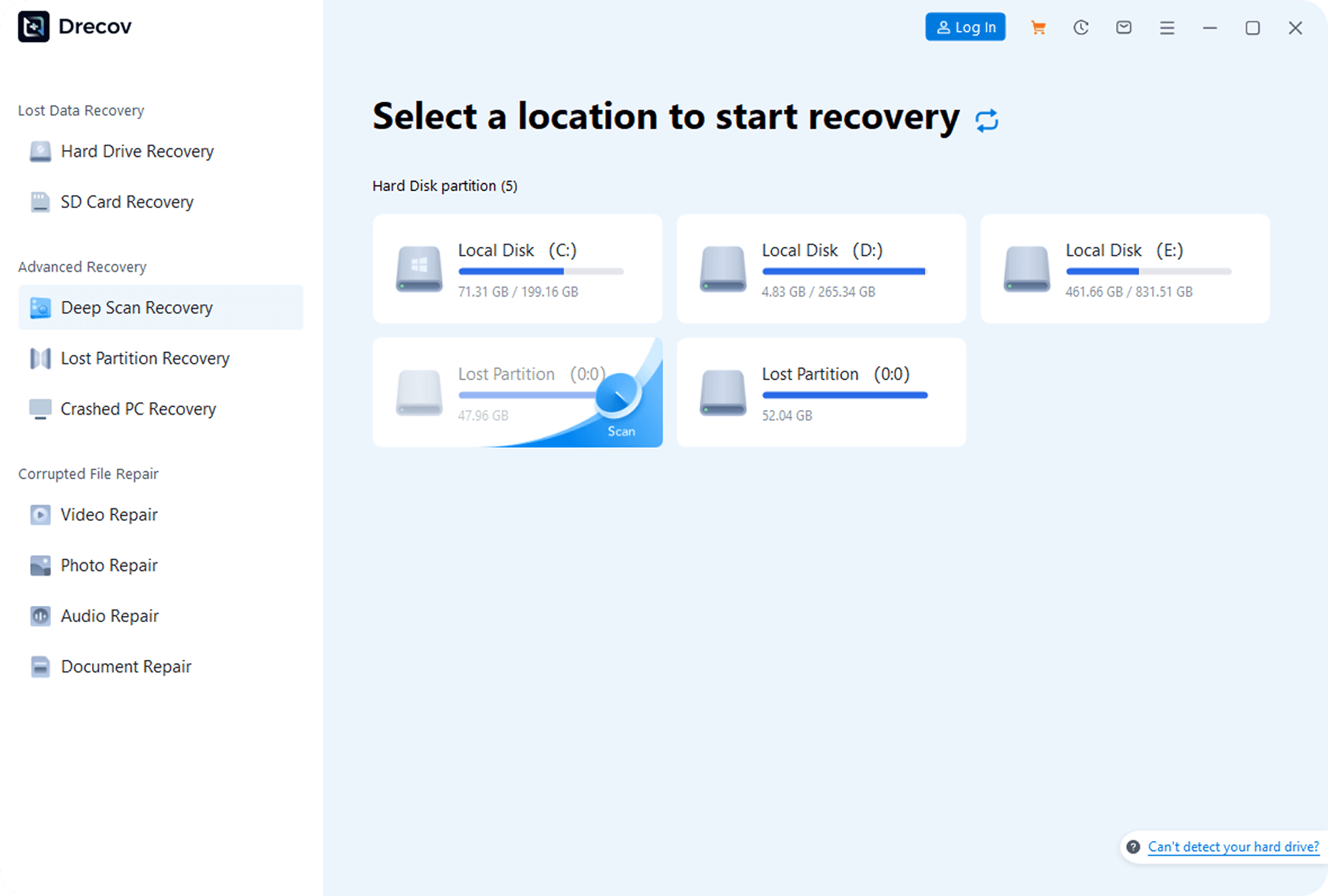
Recommended workflow:
Install PandaOffice Drecov on your computer.
Insert the SD card through a card reader.
Select the SD card from the storage list.
Run a scan.
Use deep scan if photos are missing.
Preview photos before recovery.
Recover photos to your computer or another drive.
Never recover photos back to the same SD card.
Step 4: Look for original and reconstructed files
Photo recovery can produce different result types. Some files may appear with original names and folders. Others may be reconstructed based on file signatures and have generic names.
Check both groups. Reconstructed photos may still be usable even if the original folder structure is lost.
For photographers, RAW formats such as CR2, NEF, ARW, RAF, ORF, and DNG may require specialized preview support. If preview is not available, recover a sample and test it in photo software.
Step 5: Repair after recovery
After photos are safely recovered, you can format the SD card in the camera or computer. Formatting may fix file system corruption, but it should come after recovery.
If the same card corrupts again, replace it. SD cards are inexpensive compared with the value of lost photos.
Why SD card recovery may fail
Recovery may fail if the card has been reused heavily after deletion, flash memory is worn out, the controller is damaged, or the files were fragmented and partially overwritten.
Videos are often harder to recover than photos because they are larger and more likely to be fragmented. If important videos are missing, try deep scan and recover to a large external drive.
Prevention tips
Use high-quality SD cards.
Format cards in the camera before major shoots.
Do not remove the card while writing.
Avoid filling cards completely.
Back up photos after each session.
Rotate cards instead of relying on one card.
Replace cards that show repeated errors.
Summary
A corrupted SD card does not always mean your photos are gone. Stop using the card, try another reader, scan it with PandaOffice Drecov, preview recoverable photos, and save them to another location. Repair or format the card only after the photos are safe.
About us and this blog
Panda Assistant is built on the latest data recovery algorithms, ensuring that no file is too damaged, too lost, or too corrupted to be recovered.
Request a free quote
We believe that data recovery shouldn’t be a daunting task. That’s why we’ve designed Panda Assistant to be as easy to use as it is powerful. With a few clicks, you can initiate a scan, preview recoverable files, and restore your data all within a matter of minutes.