Try lt Free
 Recovery success rate of up to

Deleting files from a USB drive can feel final because removable drives often bypass the Recycle Bin. A file deleted from a USB flash drive may disappear immediately from File Explorer, leaving the user with no obvious undo option. The good news is that deleted USB files may still be recoverable if you act carefully.
The most important concept is overwriting. When a file is deleted, the USB drive usually marks the space as available. The file data may remain on the flash memory until new data is written into the same space. If you continue using the USB drive, copy new files to it, or save recovered files back onto it, you may overwrite the data you are trying to restore.
This guide explains how to recover deleted files from a USB drive while reducing the risk of overwriting.
Step 1: Stop using the USB drive
As soon as you notice files are missing, stop using the USB drive. Do not copy anything onto it. Do not create folders. Do not rename files. Do not download recovery software to the USB drive.
If the USB drive is still connected, safely eject it if no recovery scan is currently running. Then reconnect it only when you are ready to scan it from a stable computer.
This first step matters because every new write operation can reduce the chance of recovery.
Step 2: Check whether the files are truly deleted
Before using recovery software, check a few simple possibilities.
Search the USB drive by file name or extension.
Enable hidden files in File Explorer.
Check whether the files were moved into another folder.
Try the USB drive on another computer.
Scan for malware if folders appear as shortcuts or hidden items.
Sometimes files are not deleted; they are hidden, moved, or affected by a file system display problem. If the files still cannot be found, move to recovery.
Step 3: Use PandaOffice Drecov to scan the USB drive
PandaOffice Drecov is a practical option for USB drive recovery because it provides a visual workflow: select the USB device, scan it, preview recoverable files, and restore them to another location.
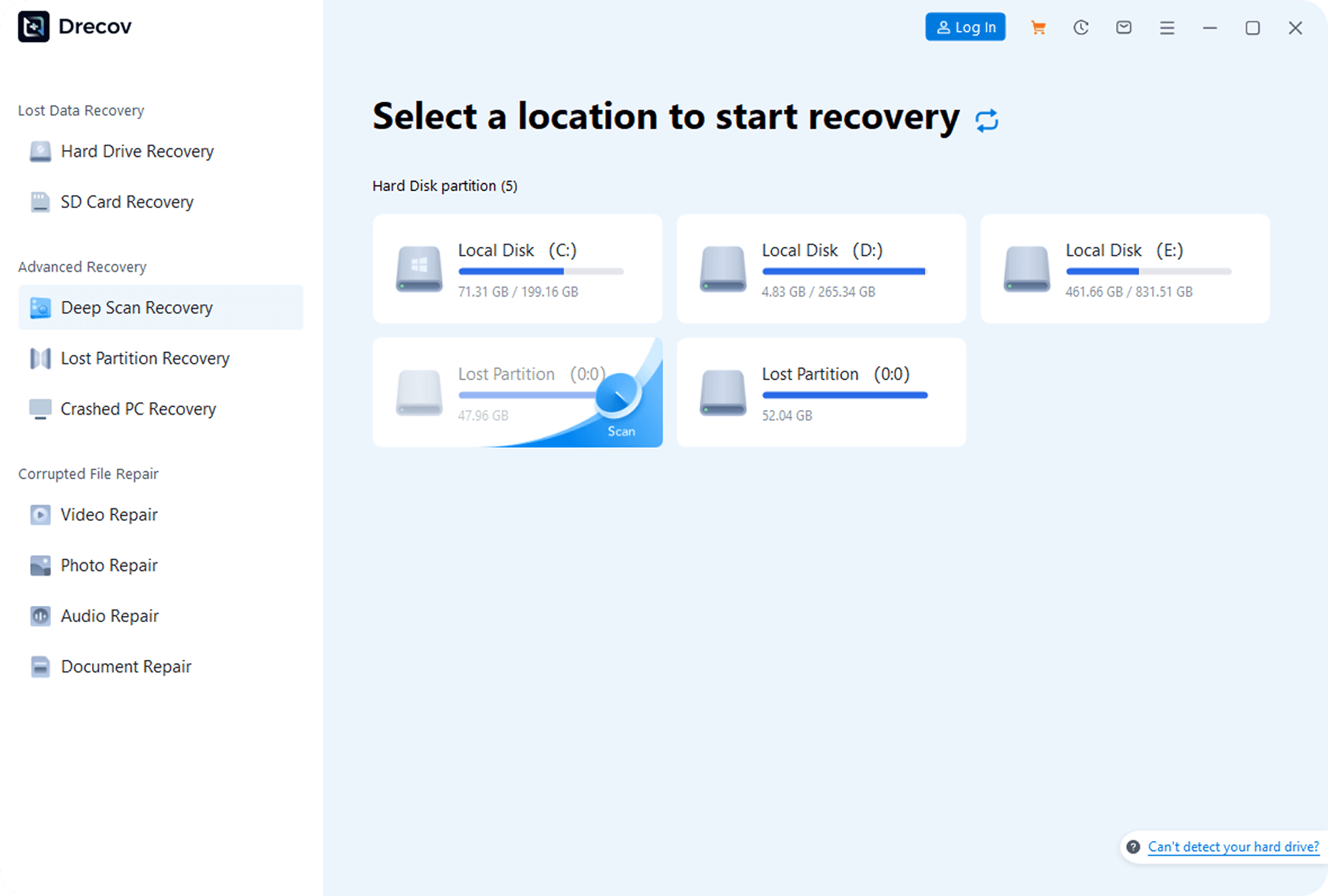
The safest workflow is:
Install PandaOffice Drecov on your computer?? internal drive, not on the USB drive.
Connect the USB drive directly to the computer.
Open PandaOffice Drecov and select the USB drive.
Run a scan.
Preview recoverable files when possible.
Select the files you need.
Recover them to a different drive.
Saving recovered files to another location is critical. If the USB drive is drive E:, recover to drive C:, D:, or another external disk. Do not recover to E:.
Step 4: Use deep scan if quick scan is not enough
A quick scan may find recently deleted files if the file system still contains useful records. If it does not find what you need, use a deeper scan. Deep scans take longer but can locate files based on signatures and remaining data patterns.
Deep scan is especially useful when:
Files were deleted some time ago.
The USB drive has been formatted.
The file system is damaged.
Folder names are missing.
The drive shows unusual errors.
Be patient. Large USB drives can take time to scan, especially if they are slow or have bad blocks.
Step 5: Preview before recovering
Preview is important because recovery results can include deleted files, temporary files, duplicates, corrupted files, and old versions. Previewing photos, documents, and videos helps confirm whether the file is worth restoring.
If the preview fails, the file may still recover partially, but it may be damaged. Try recovering important files anyway if they are not replaceable.
Step 6: Try Windows File Recovery if needed
Windows File Recovery is Microsoft?? free command-line recovery tool. It can be useful if you are comfortable with commands and want a second option. The destination must be a different drive.
For example:
winfr E: D:\RecoveredUSB /extensive
Replace E: with the USB drive letter and D: with a different destination drive.
This tool is helpful for technical users, but it is less beginner-friendly than a visual recovery program.
Why USB recovery sometimes fails
USB recovery is not guaranteed. Recovery may fail if:
New files have overwritten the deleted data.
The USB drive was fully formatted.
The flash memory is physically failing.
The file was fragmented and some fragments are missing.
The drive controller is damaged.
The file was securely erased.
The sooner you stop using the USB drive, the better your chances.
How to prevent future USB data loss
Keep important files in at least two places.
Safely eject USB drives before removal.
Avoid using cheap USB drives for important storage.
Do not use a USB drive as the only backup.
Replace drives that disconnect randomly or become very slow.
Keep cloud or external backups for critical files.
Summary
Deleted files from a USB drive may still be recoverable if they have not been overwritten. Stop using the drive, scan it with recovery software such as PandaOffice Drecov, preview the files, and restore them to another device. Avoid formatting or saving new files to the USB drive until recovery is complete.
About us and this blog
Panda Assistant is built on the latest data recovery algorithms, ensuring that no file is too damaged, too lost, or too corrupted to be recovered.
Request a free quote
We believe that data recovery shouldn’t be a daunting task. That’s why we’ve designed Panda Assistant to be as easy to use as it is powerful. With a few clicks, you can initiate a scan, preview recoverable files, and restore your data all within a matter of minutes.