Try lt Free
 Recovery success rate of up to

The 3-2-1 backup rule is one of the simplest ways to protect important files. It says you should keep three copies of your data, on two different types of storage, with one copy stored off-site. The rule sounds basic, but it solves a real problem: most people only discover their backup system is weak after a phone, laptop, SD card, or external drive fails.
Photos, work documents, tax records, school files, and creative projects are easy to take for granted until they disappear. A good backup plan gives you options before panic begins.
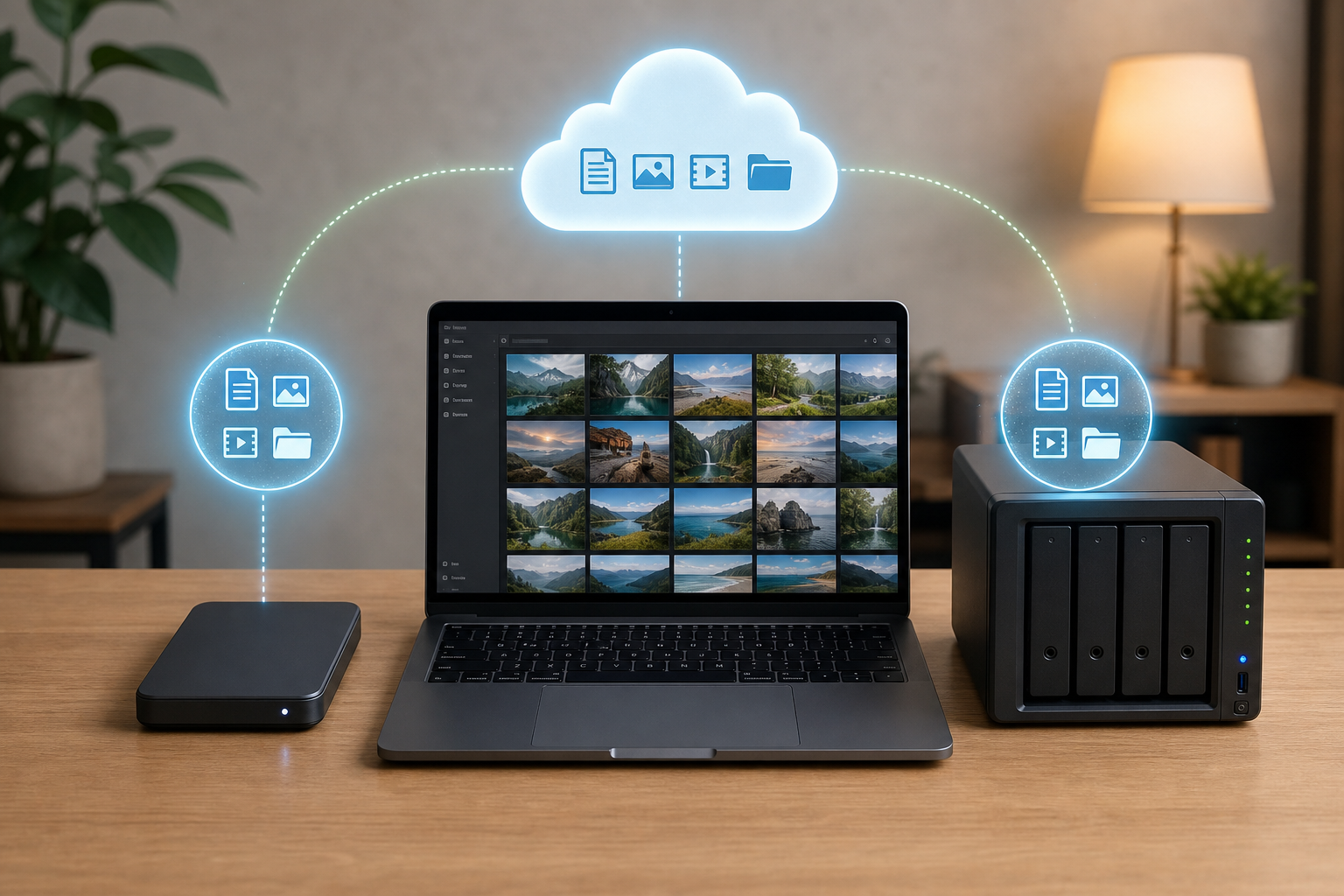
What the 3-2-1 rule means
The first number, 3, means three total copies of your data. One is the original file on your computer or phone. The other two are backups. The second number, 2, means those copies should not all live on the same type of storage. For example, you might use your laptop plus an external hard drive plus cloud storage. The final number, 1, means at least one copy should be away from your main device, so theft, fire, flood, or ransomware does not destroy everything at once.
You do not need an enterprise system to follow this rule. A home user can start with an external hard drive and a reliable cloud backup service. The key is consistency.
Why one backup is not enough
Many people believe they are safe because they copied files to an external drive once. But a single backup can fail too. External drives can be dropped, corrupted, stolen, or accidentally formatted. Cloud storage can sync deletions. A folder deleted on one device may disappear everywhere if sync is not configured carefully.
The 3-2-1 rule protects against different types of failure. If the laptop dies, you have the external drive. If the external drive fails, you have the cloud copy. If cloud access is lost, you still have local storage.
How to build a simple backup system
Start by identifying what must be protected. For most people, that includes photos, documents, desktop folders, downloads, project files, and password manager recovery codes. Then choose one local backup method and one off-site method.
A practical setup might look like this: your computer stores the original files, an external hard drive runs a weekly backup, and a cloud service stores a continuous copy of your most important folders. For phone photos, enable cloud photo backup, then periodically export important albums to a computer or external drive.
Test your backups
A backup is only useful if it can be restored. Once a month, choose a few files and restore them to a temporary folder. Check that photos open, documents are readable, and filenames are intact. This small test catches problems early.
If you already lost files and do not have a working backup, stop using the affected storage device. Writing new data can overwrite what you want to recover. For recovery guidance and practical file-loss scenarios, visit Drecov before trying risky fixes such as formatting or reinstalling a system.
Protect backups from ransomware
Ransomware can encrypt files on connected drives and synced folders. That is why at least one backup should be disconnected or protected from immediate changes. Some cloud services offer version history, which can help restore older clean copies. External drives should not stay plugged in all the time unless the backup software provides strong protection.
For family photos and important documents, consider keeping one drive in a safe place and updating it on a schedule. It is less convenient, but it gives you a recovery path if your main device and cloud account are compromised.
When recovery software fits in
Backups are prevention. Recovery software is for the moment prevention failed. If files were deleted, a memory card was formatted, or a drive became unreadable, recovery may still be possible if the original data has not been overwritten. Users who need a recovery tool can start with the Drecov download page.
The best digital safety plan uses both ideas: regular backups for predictable protection, and careful recovery steps when something unexpected happens.
About us and this blog
Panda Assistant is built on the latest data recovery algorithms, ensuring that no file is too damaged, too lost, or too corrupted to be recovered.
Request a free quote
We believe that data recovery shouldn’t be a daunting task. That’s why we’ve designed Panda Assistant to be as easy to use as it is powerful. With a few clicks, you can initiate a scan, preview recoverable files, and restore your data all within a matter of minutes.