Try lt Free
 Recovery success rate of up to

When a USB drive becomes RAW, Windows may ask you to format it before use. This message is alarming because the drive may contain important documents, photos, videos, or work files. But RAW does not always mean the data is gone. It usually means the file system cannot be recognized.
Before formatting, you should attempt recovery. Formatting may make the USB drive usable again, but it can also overwrite file system information that helps recovery software rebuild file names and folder structures.
This guide explains what to do before formatting a RAW USB drive.
What does RAW mean?
A USB drive normally uses a file system such as FAT32, exFAT, or NTFS. The file system tells Windows where files are stored, how folders are organized, and which space is available. If this structure becomes damaged, Windows may display the drive as RAW.
Common causes include:
Unsafe removal.
Interrupted file transfer.
Power loss.
File system corruption.
Bad sectors.
Virus or malware activity.
Failed formatting.
Old or unreliable flash memory.
Do not format first
The format prompt is not a recovery tool. It creates a new file system. If you need the files, do not click Format yet.
Instead:
Cancel the format prompt.
Stop using the USB drive.
Do not run repair tools immediately.
Prepare another drive for recovered files.
Scan the RAW USB drive with recovery software.
Recover files with PandaOffice Drecov
PandaOffice Drecov can help when a USB drive is visible to Windows but cannot be opened normally. It can scan the storage device and look for recoverable files even when the file system is damaged.
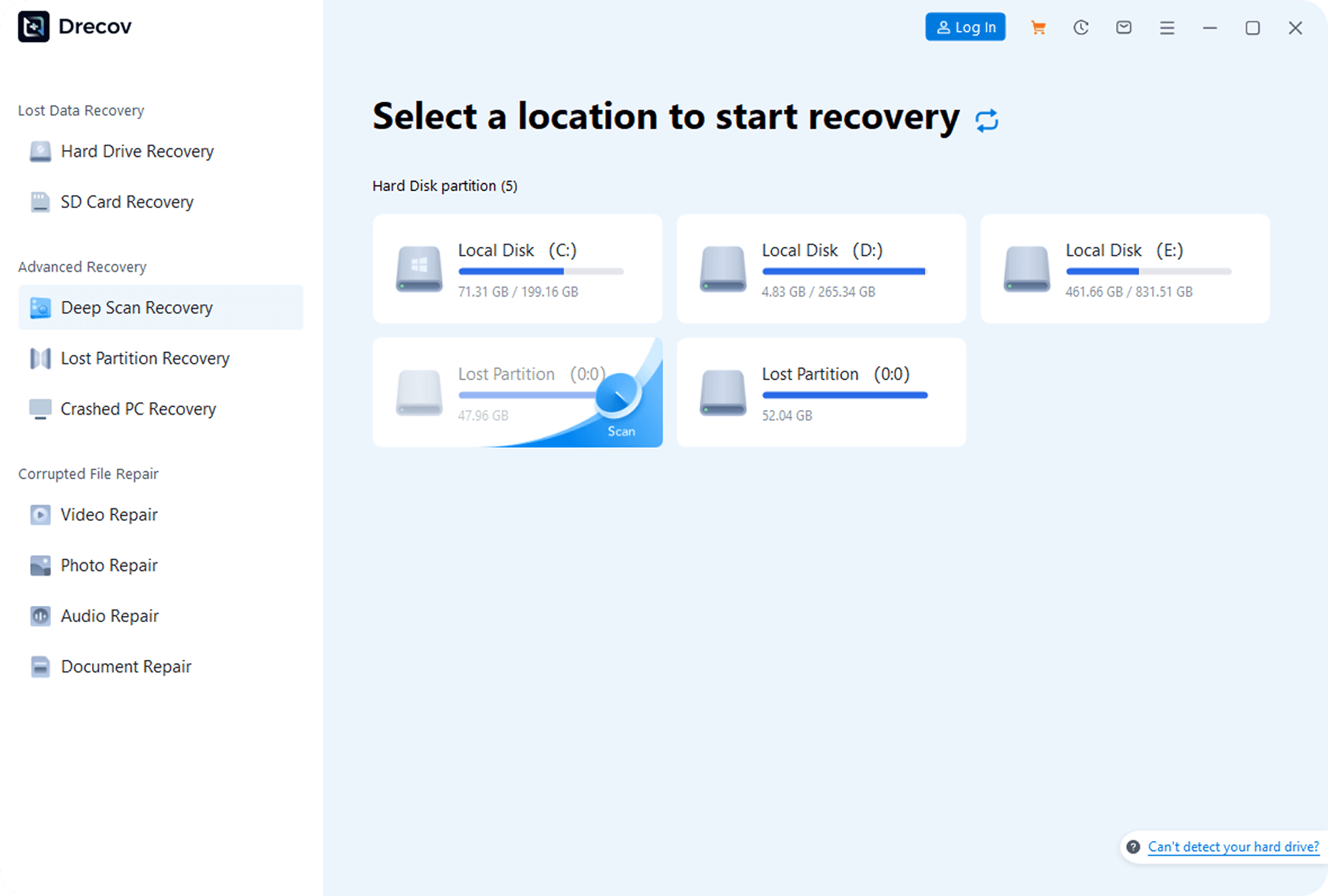
Use this process:
Install PandaOffice Drecov on your computer, not on the RAW USB drive.
Connect the RAW USB drive directly to the computer.
Select the USB drive in the software.
Run a scan.
Use deep scan if the first scan does not find enough files.
Preview recoverable files.
Recover files to another disk.
Do not save recovered files back to the RAW USB drive. That can overwrite remaining data.
Should you use CHKDSK?
Many users search for CHKDSK when a drive becomes RAW. CHKDSK can repair some file system problems, but it is not always safe before recovery.
If Windows reports that the file system is RAW, CHKDSK may refuse to run. If it does run, it may modify file system records. This can be helpful after recovery, but risky before recovery.
Recommended order:
Recover important files first.
Verify recovered files.
Then try repair commands or formatting.
When formatting is acceptable
Formatting is acceptable only after important data has been recovered or if the data is not needed.
After recovery, you can format the USB drive as exFAT for broad compatibility or NTFS for Windows-focused use. If formatting fails or the drive becomes RAW again, replace the USB drive.
Why recovery may fail
RAW USB recovery may fail if the drive is physically damaged, flash memory is worn out, the device disconnects repeatedly, data has been overwritten, or the controller chip is faulty.
If the drive contains highly valuable data and is unstable, stop scanning and consider professional recovery.
Summary
A RAW USB drive is not automatically empty. The safest approach is to cancel the format prompt, stop using the drive, scan it with PandaOffice Drecov or another recovery tool, recover files to a different location, and only then format or repair the USB drive.
About us and this blog
Panda Assistant is built on the latest data recovery algorithms, ensuring that no file is too damaged, too lost, or too corrupted to be recovered.
Request a free quote
We believe that data recovery shouldn’t be a daunting task. That’s why we’ve designed Panda Assistant to be as easy to use as it is powerful. With a few clicks, you can initiate a scan, preview recoverable files, and restore your data all within a matter of minutes.