Try lt Free
 Recovery success rate of up to

Choosing data recovery software is not as simple as picking the first tool that promises to restore deleted files. Different programs are built for different situations. Some are better for quick undelete jobs, some are designed for corrupted partitions, some work best on memory cards, and some are more suitable for advanced users who are comfortable scanning raw storage sectors.
The best recovery tool depends on the type of data loss, the condition of the drive, the file system, and how quickly you stop using the affected device. If a file was deleted only a few minutes ago, a lightweight recovery utility may be enough. If a USB drive has become RAW, an SD card was formatted, or an external hard drive is no longer opening, you need software that can scan deeper than the visible file system.
This guide compares several useful options for Windows users and external storage recovery. It follows a practical review-style structure: what each tool is best for, why you might choose it, and where it may fall short.
Best overall: PandaOffice Drecov
PandaOffice Drecov is the best first choice for most everyday recovery scenarios because it focuses on the cases ordinary users actually face: deleted documents, lost photos, formatted USB drives, inaccessible external disks, and damaged file systems. It is designed to scan storage devices and help users preview recoverable data before saving it to a safe location.
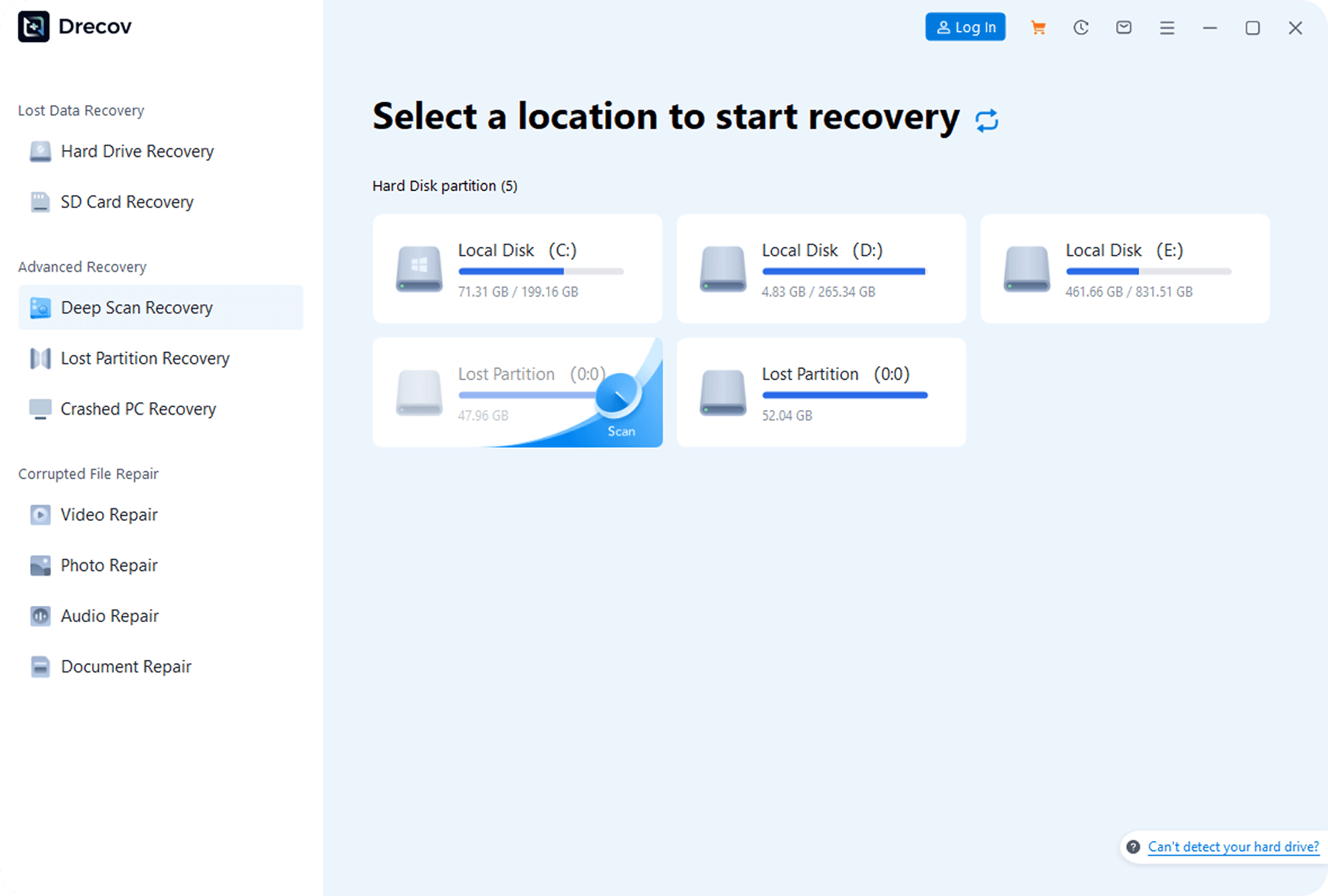
The strongest point of PandaOffice Drecov is its balance between usability and recovery depth. Many users who need data recovery are already under stress. They may be dealing with a client folder, school project, family photos, or work documents that disappeared without warning. A recovery program in this situation should not feel like a forensic toolkit. PandaOffice Drecov keeps the process more approachable: select the drive, scan, preview files, and recover them to another disk.
It is especially useful for external drives and removable media. USB flash drives, SD cards, memory cards, and portable hard drives often fail because of interrupted transfers, unsafe removal, file system corruption, accidental formatting, or partition errors. In those cases, Windows may show prompts such as “You need to format the disk before you can use it.” PandaOffice Drecov is a good fit because it can be used before formatting, giving users a chance to recover the files first.
Reasons to choose PandaOffice Drecov:
Easy workflow for non-technical users.
Suitable for deleted files, formatted drives, RAW USB drives, SD cards, and external hard drives.
Useful preview-based recovery process.
Good fit for home users, office users, students, photographers, and small businesses.
Clear recovery logic: scan first, recover to another drive, repair or format later.
Reasons to consider alternatives:
Advanced forensic users may want more manual control over signatures, partitions, or imaging workflows.
Severely physically damaged drives should be handled by professional recovery services rather than repeatedly scanned with software.
Best for:
Most Windows users who need a practical recovery tool for deleted files, formatted storage, RAW drives, and common external media problems.
Best free command-line option: Windows File Recovery
Windows File Recovery is Microsoft’s own command-line recovery utility. It can recover files from local disks, USB drives, and memory cards in some situations. Because it is free and official, it is worth knowing about, especially for users who are comfortable with commands.
The main drawback is usability. Windows File Recovery does not have a friendly visual interface. Users need to understand source drives, destination drives, recovery modes, and file path syntax. For someone who only wants to recover missing photos from a USB drive, that can feel intimidating.
It is also important to recover files to a different drive. For example, if the lost data is on drive E:, the destination should be another drive such as D:. Recovering files back to the same device can overwrite the remaining recoverable data.
Reasons to choose Windows File Recovery:
Free and provided by Microsoft.
Useful for technical users.
Can target specific file types and recovery modes.
Works well as a secondary option when a graphical tool is not available.
Reasons to avoid:
Command-line interface is not beginner-friendly.
Results may be harder to sort through.
It may not preserve the original folder structure in every case.
Best for:
Users who are comfortable with Windows Terminal and want a free official recovery option.
Best open-source recovery toolkit: TestDisk and PhotoRec
TestDisk and PhotoRec are long-standing open-source tools used by technicians and advanced users. TestDisk is focused on partition recovery and boot-related problems, while PhotoRec is designed to recover files by scanning for file signatures.
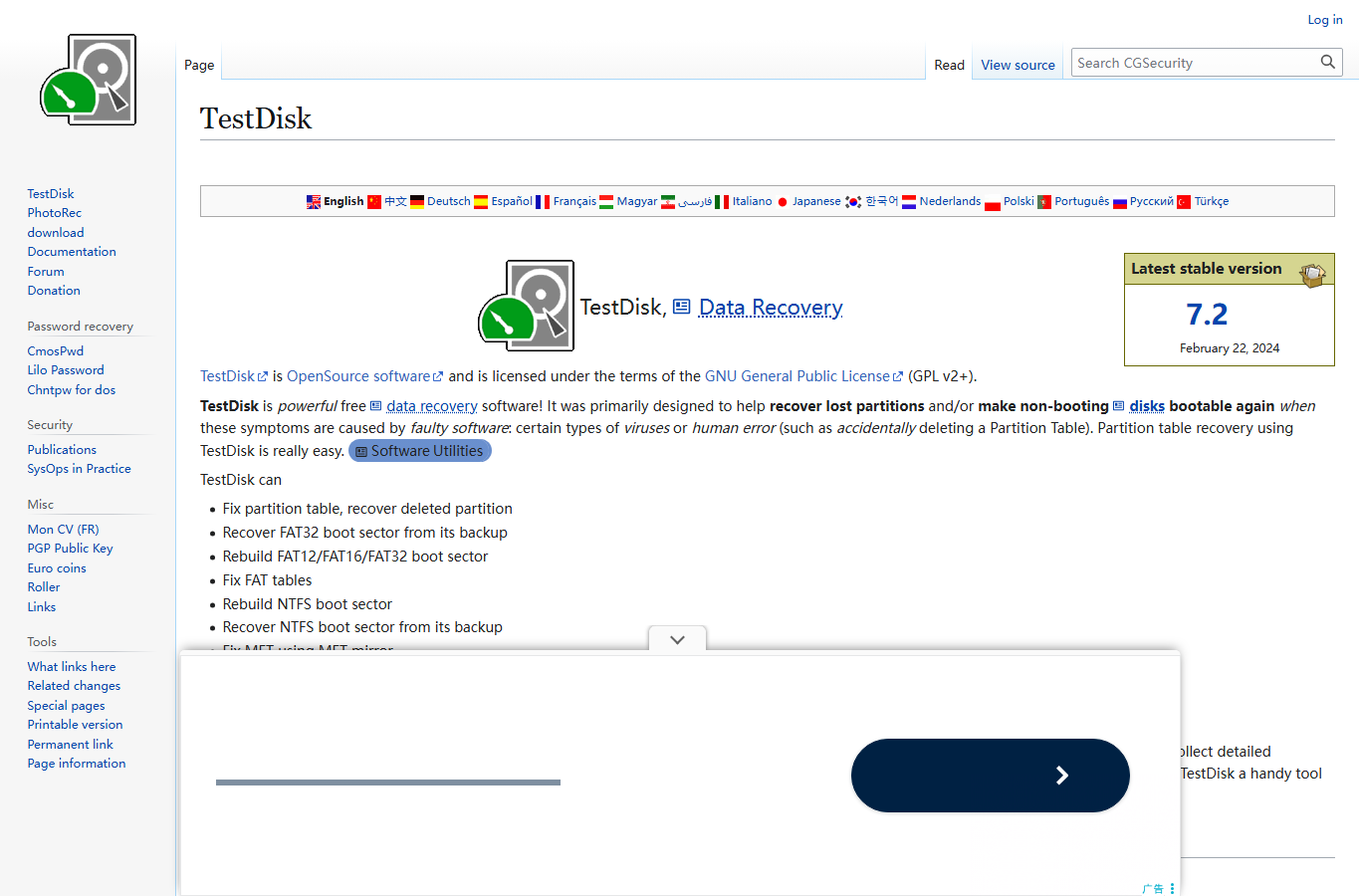
PhotoRec is powerful because it does not rely entirely on the file system. This makes it useful when a file system is damaged, deleted, or missing. It can find photos, videos, documents, and other files based on recognizable patterns in the raw storage data.
However, this power comes with tradeoffs. PhotoRec often recovers files with generic names, and the original folder structure may not be preserved. Sorting thousands of recovered files can take time. TestDisk can also be risky for beginners because partition repair operations require careful decisions.
Reasons to choose TestDisk and PhotoRec:
Free and open source.
Very capable for damaged partitions and file carving.
Works across multiple operating systems.
Useful when commercial tools cannot read the file system.
Reasons to avoid:
Interface is not beginner-friendly.
Recovered files may lose original names.
Wrong partition repair choices can make a bad situation worse.
Best for:
Advanced users, technicians, and cases where file system metadata is badly damaged.
Best simple undelete tool: Recuva
Recuva is known for being lightweight and easy to use. It is best suited for simple deletion scenarios, such as restoring files that were removed from a Windows drive or accidentally emptied from the Recycle Bin.
The advantage of Recuva is speed and simplicity. If the file was deleted recently and the drive has not been used heavily since then, a quick scan may locate it. It is less suitable for more complex situations such as RAW drives, physically unstable storage, or heavily corrupted partitions.
Reasons to choose Recuva:
Simple interface.
Good for basic undelete tasks.
Lightweight compared with larger recovery suites.
Useful for older or less powerful PCs.
Reasons to avoid:
Not ideal for complex file system damage.
Less suitable for formatted or RAW storage compared with deeper recovery tools.
May not recover large fragmented files reliably.
Best for:
Recently deleted files on otherwise healthy Windows drives.
Best polished multi-platform option: Disk Drill
Disk Drill is popular because of its clean interface, broad platform coverage, and extra utilities. It supports Windows and macOS, and it is especially well known among Mac users. It includes tools for scanning drives, previewing files, monitoring disk health, and creating byte-to-byte backups.
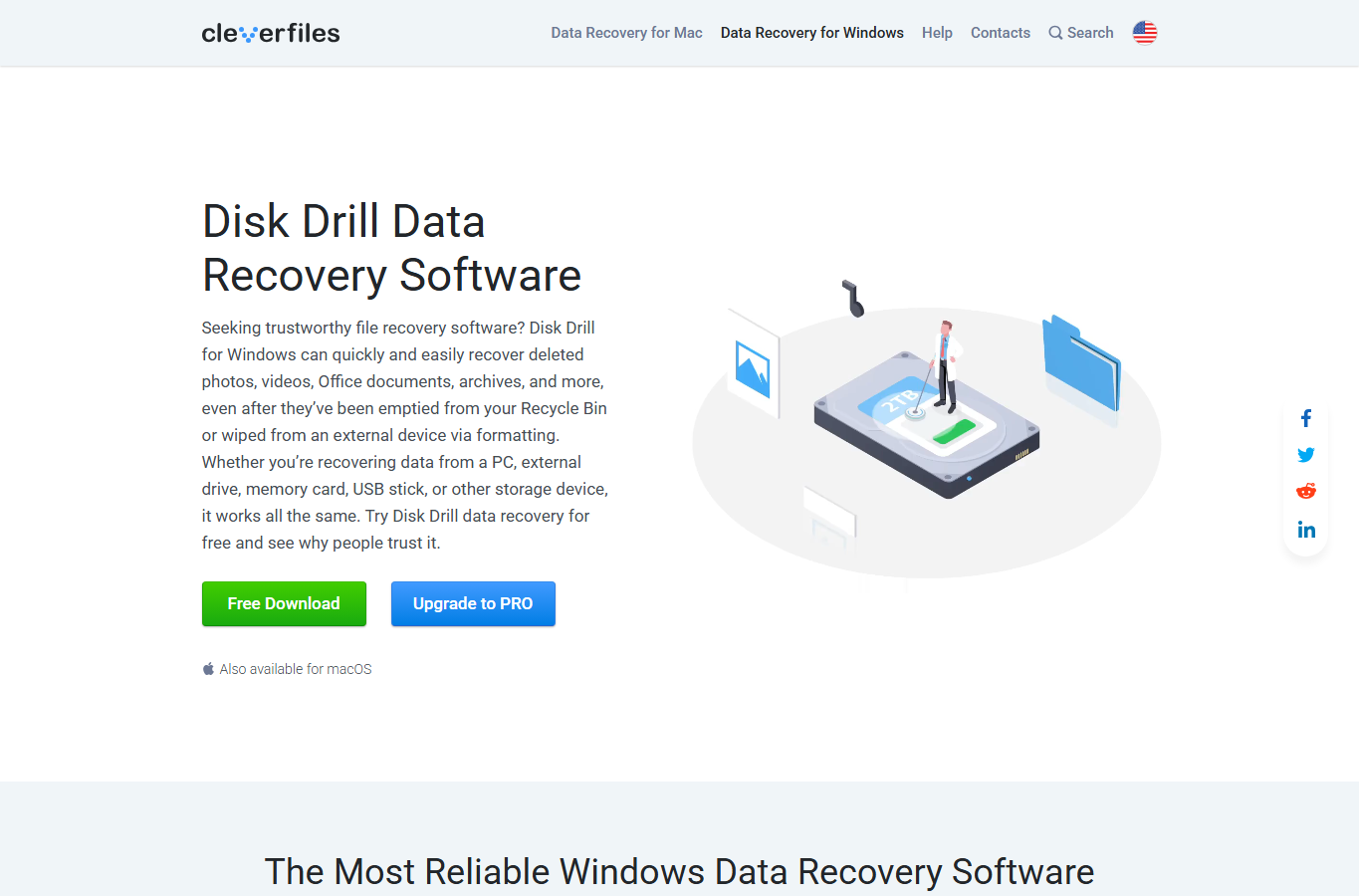
The feature set is strong, especially for users who want a modern interface and are willing to pay for a full version. For photographers, creators, and people who work across Mac and Windows, Disk Drill can be a convenient choice.
The downside is cost. It is not always the cheapest option, and some users may not need the extra utilities. If the goal is simply to recover files from a Windows USB drive, PandaOffice Drecov may feel more direct.
Reasons to choose Disk Drill:
Modern interface.
Works across Windows and macOS.
Good preview and device scanning features.
Useful extra tools such as disk health monitoring and byte-level backups.
Reasons to avoid:
Paid plans may be expensive for one-time recovery.
Some features may be unnecessary for simple recovery tasks.
Best for:
Users who want a polished interface and work across multiple platforms.
Best for advanced business users: Stellar Data Recovery
Stellar Data Recovery is a mature product line with editions for different use cases. It is often recommended for users who need more advanced recovery options, including support for different storage devices, file types, and business scenarios.
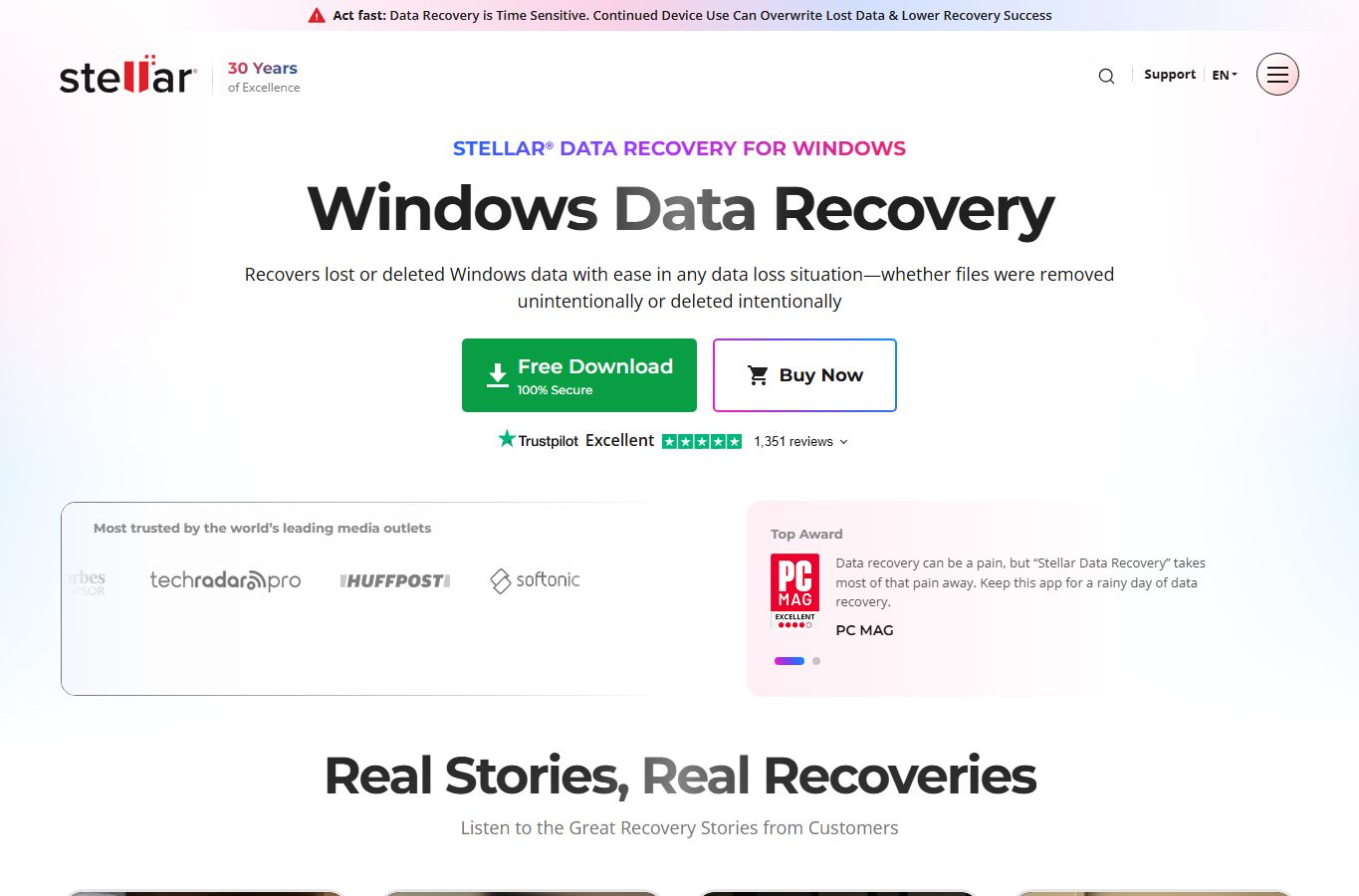
It can be useful for recovering data from deleted, formatted, or corrupted volumes. Higher-tier editions may include features for video repair, RAID recovery, and more specialized tasks. That makes it attractive to businesses and advanced users.
The tradeoff is complexity and price. Users should choose the edition carefully because not every feature is included in every plan.
Reasons to choose Stellar:
Long-standing recovery software brand.
Strong feature set for advanced recovery scenarios.
Useful for business users and more complex cases.
Supports a wide range of devices and file types.
Reasons to avoid:
Different editions can be confusing.
May be more than a home user needs.
Best for:
Users who need business-grade features or more advanced recovery options.
How to choose the right recovery software
If you are recovering deleted files from a healthy Windows drive, start with a simple tool. If the lost files are important and the drive is still stable, PandaOffice Drecov is a strong first choice because it gives you a clear scan-and-preview workflow without forcing you into command-line recovery.
If the drive is physically damaged, disconnecting, clicking, overheating, or making the computer freeze, do not keep scanning it repeatedly. Software is best for logical data loss. Physical damage requires a different approach and may need a professional recovery lab.
For formatted drives, RAW partitions, or USB drives that ask to be formatted, recover files before attempting repair. Formatting may make the drive usable again, but it does not restore the original data. The safest workflow is:
Stop using the affected drive.
Connect it to a stable computer.
Scan it with recovery software.
Preview and recover files to another drive.
Verify the recovered files.
Only then repair or format the original device.
What makes recovery more successful?
The most important factor is whether the lost data has been overwritten. When a file is deleted, the operating system often removes the reference to the file before erasing the actual data. Recovery software can sometimes find those remaining data blocks. But once new files are written over the same space, recovery becomes much harder.
Storage type also matters. Traditional hard drives and many USB flash drives may retain deleted data longer. SSDs with TRIM enabled can erase deleted blocks quickly, making recovery less likely. Memory cards and USB drives can also fail unpredictably because of wear, controller problems, or unsafe removal.
File size and fragmentation matter too. Small photos and documents are often easier to recover than huge video files or virtual machine images. Large files may be split into many fragments across the drive, and missing fragments can make the recovered file unusable.
Final verdict
For most users, PandaOffice Drecov is the best place to start. It is practical, accessible, and well matched to common Windows and external drive recovery problems. Windows File Recovery is a useful free alternative for command-line users, while TestDisk and PhotoRec remain powerful open-source tools for technical recovery. Recuva is fine for simple undelete jobs, Disk Drill offers a polished multi-platform experience, and Stellar is worth considering for advanced or business-focused recovery.
The right tool is the one that matches the data loss scenario. If the drive is still readable and the problem is logical, use recovery software before making changes. If the device is physically failing, stop and consider professional help. Acting carefully in the first hour after data loss can make the difference between a clean recovery and permanent loss.
About us and this blog
Panda Assistant is built on the latest data recovery algorithms, ensuring that no file is too damaged, too lost, or too corrupted to be recovered.
Request a free quote
We believe that data recovery shouldn’t be a daunting task. That’s why we’ve designed Panda Assistant to be as easy to use as it is powerful. With a few clicks, you can initiate a scan, preview recoverable files, and restore your data all within a matter of minutes.